
Not sure what works on a particular website? Browse the torrent site compatibility directory for manually checked detection, Batch, browser and Shield notes.

Magnetar Help
Quick help for the toolbar, Sync mobile, Send to mobile, Organised folders, TorBox Airlock, provider actions and common fixes.
Quick start
- Choose a target provider.
- Add credentials if that target needs them.
- Open a torrent or search page.
- Send with the toolbar or detected page buttons.
- Check downloads, saved items, or history.
Sync mobile and QR pairing
The extension works on its own. Magnetar Mobile is needed for Magnetar Sync, mobile Review and organised folders across devices.
- Open Magnetar extension.
- Click Sync mobile.
- Create/show pairing QR.
- Open Magnetar Mobile.
- Go to Settings > Sync.
- Scan the QR code.
- Confirm paired state.
- Use Pull sync / Push sync if needed.
Send to mobile
- Sends one item from the extension to Magnetar Mobile.
- Batch Send to mobile can send multiple detected items.
- Items arrive in the app Review queue.
- Review lets you check items before saving, sending or browsing.
Toolbar basics
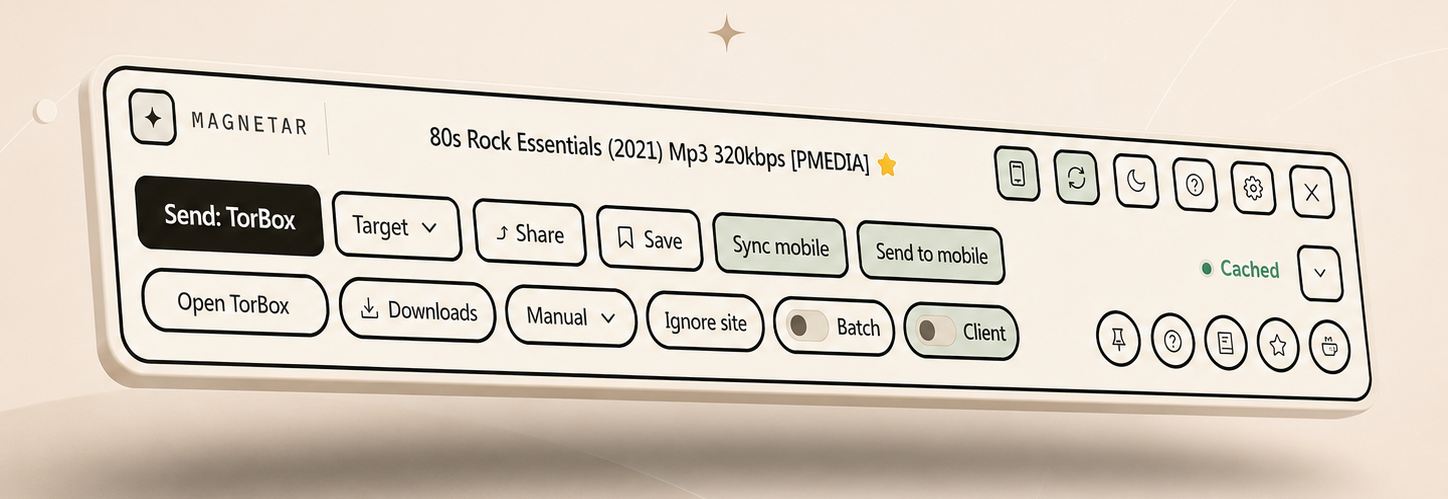
Choosing a target
Local client
Hands a magnet to your browser or system torrent app.
TorBox
Send to your TorBox account with an API key.
Real-Debrid
Send magnets to Real-Debrid with an API key.
AllDebrid
Send magnets to AllDebrid with an API key.
Premiumize
Send magnets to Premiumize with an API key.
RDT Client
Send to your own RDT Client server.
qBittorrent
Send to a configured qBittorrent Web UI target.
Standard vs Advanced toolbar
Standard
Best for simple one-click sending with fewer controls visible.
Advanced
Adds target switching, Manual send, Batch, Client view, Pin, Detection Details, Ignore site, and more context.
Using Client view
Client view lets you browse supported provider or client items directly from the Magnetar toolbar. Select the target or provider, open Client, and page through available items without leaving the current page.
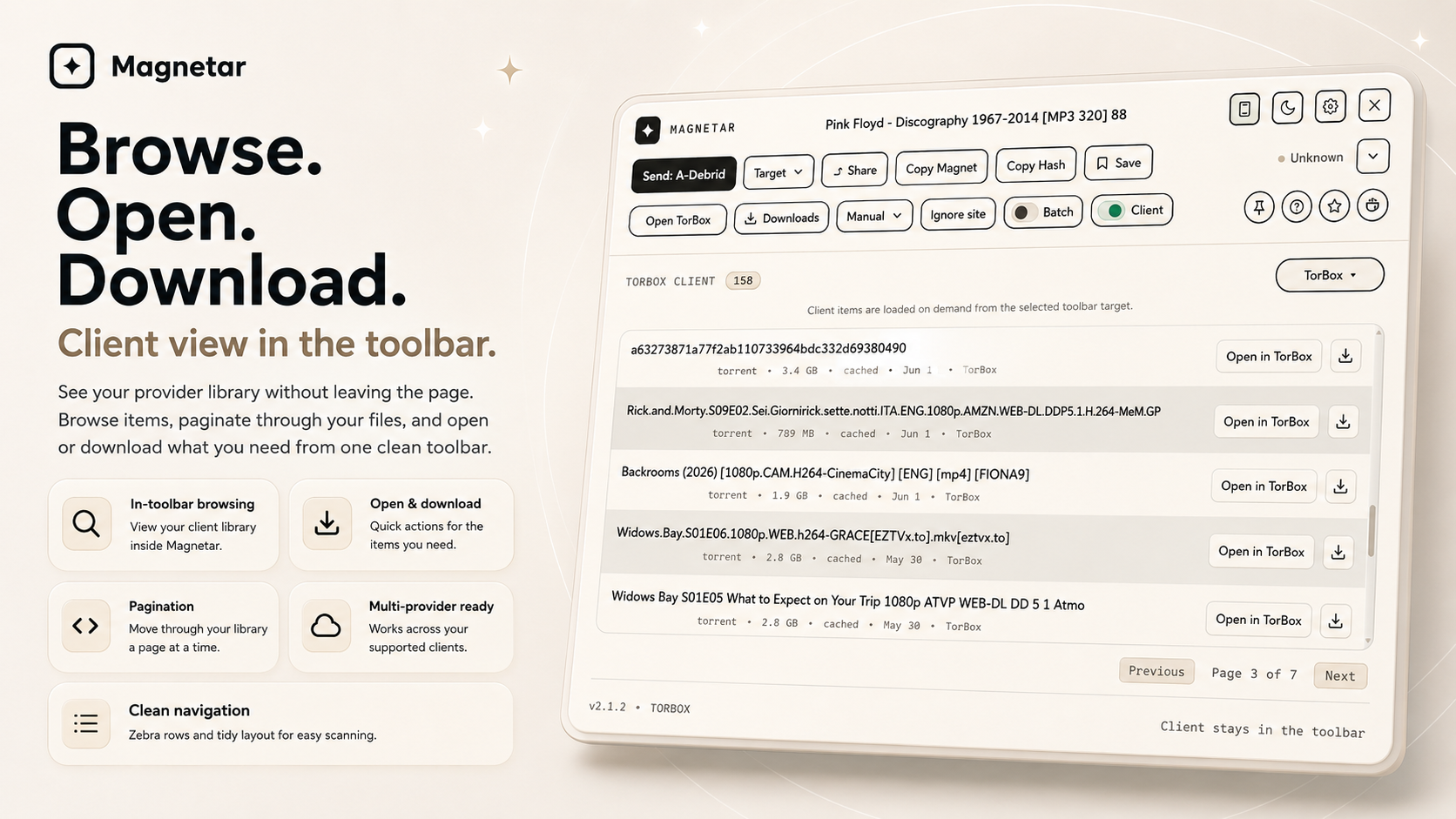
Client toggle
Opens and closes Client view. Client and Batch are separate modes.
Provider selector
Choose the target you want to browse before opening Client view.
Item rows
Rows show available provider or client items in a clean toolbar list.
Open in provider
Open an item in the provider or client when that action is available.
Download icon
Shown only where the provider supports a direct download action.
Pagination
Move through pages while Client view stays in the toolbar.
Provider notes
- TorBox: open and download where supported.
- Real-Debrid: open and download where supported.
- AllDebrid: rows use Open in AllDebrid so you can download through AllDebrid's own page.
- Premiumize, RDT Client, qBittorrent and local clients: support depends on configuration and what the client exposes.
Magnetar folders do not change provider folders
Organised folders help you group items inside Magnetar. They do not change your provider library. Provider files and folders stay exactly where they are.
They can contain items from different supported providers. Folder names, colours and contents sync through Magnetar Sync.
To browse or open provider items inside a folder, the provider must be configured on that browser or device.
TorBox Airlock
Airlock is a TorBox feature. Magnetar can show and toggle Airlock for supported TorBox items in TorBox provider lists and supported organised folder items.
TorBox is the authority for Airlock status. If you Airlock in the extension, the app can see it after refreshing TorBox. If you Airlock in the app, the extension can see it after refreshing TorBox.
This does not use Magnetar Sync as the authority. It uses your local TorBox API key, with no TorBox website cookies or session scraping.
Manual send and hash to magnet
Paste a magnet link or info hash when Magnetar cannot detect one automatically, then send it, copy it, or review the generated magnet.
Batch mode
Batch mode is for pages with multiple detected items. Review the detected rows, select what you want, and send them together. Batch Send to mobile can send selected items to Magnetar Mobile's Review queue after Sync pairing. Client view is different because it browses your configured provider or client library.
What does green mean?
Soft green marks Magnetar Sync, mobile and organised-folder actions. Provider send actions stay separate.
Using Magnetar Shield
Magnetar Shield blocks known popup and ad trap domains, with faster popup-tab closing in current builds. If Shield is disabled, it is disabled.
Manual blocked domains
Add domains you want Shield to block yourself.
Recommended popup list
Optionally import a curated list of known popup trap domains.
Removing domains
Remove a domain if a site needs it or if you no longer want it blocked.
Separate lists
Manual blocked domains stay separate from imported recommended domains.
Installing the recommended popup list
- Go to Settings or Options.
- Open the Shield section.
- Click Install recommended list.
- Magnetar fetches the public JSON list from arrcee.com.
- The list is validated and stored locally.
- You can update it or remove it later.
The recommended popup list is optional. It is a small curated list of known popup and ad trap domains maintained by Magnetar. It is remote data only, not remote code. Magnetar does not send the current page, browsing history, provider keys or detected magnets when checking the list.
This list only blocks top-level popup tabs. It does not block page scripts, images, captchas or normal site resources.
The public list is plain JSON hosted as shield-popup-list.json.
Manual popup blocking
- Add only the domain, not a full URL.
- Avoid blocking legitimate services you need.
- Do not default-block broad commerce, CDN or challenge domains.
- Remove a domain if a site breaks.
ext.to support
Magnetar can detect hidden hashes on supported ext.to detail pages by using the page's own View Hash flow. This is for single detail pages, not batch reveal.
Saved for later and history
Save items for later. History shows recent sends, source URLs when available, resend actions, and duplicate detection.
Site controls
Use Ignore site when Magnetar is not useful there. It is easier to access in current builds. Site blocking stops detection on domains you choose.
Troubleshooting
Nothing detected on the page
Try another supported result page, open Advanced mode for Detection Details, or use Manual send if the page only exposes text.
Provider send failed
Check the provider is selected, credentials are valid, and the provider service is reachable.
qBittorrent, RDT Client, or local client is not responding
Check the configured URL or handler, confirm the client is running, and verify any login details.
Client view is empty
Check provider or client configuration, confirm the selected target supports browsing, then refresh the page.
Download is unavailable
The selected provider may not expose a direct download action for that item.
AllDebrid rows do not download directly
Use Open in AllDebrid to continue through AllDebrid's own page.
Batch mode looks empty
Batch only shows when Magnetar finds multiple supported items on the current page.
Pairing does not show
Refresh the extension and app, then create or show the pairing QR again from Sync mobile.
Folders do not appear on mobile
Use Pull sync on the device that is missing changes.
Folder item cannot open
The provider for that item may not be configured locally on this browser or device. Provider keys stay local.
Airlock looks out of date
Refresh TorBox. Airlock is TorBox state, not Magnetar Sync state.
Credentials or API key problems
Re-enter the credential in Settings and use Save & Test before sending again.
Extension buttons are not showing
Check that the site is not ignored or blocked, then refresh the page after changing settings.
Cached status is missing
Cached status is only shown when the chosen provider can report it for the detected item.
Shield blocks something needed
Remove that domain from Shield or disable Shield temporarily, then refresh the site.
Recommended list fetch fails
Check your connection and try again after the site deploy is available.
ext.to is not detecting
Reload the page and use a supported single detail page.
Privacy and local-first
- Provider API keys and client passwords stay local.
- The extension has no analytics, telemetry, or tracking.
- Synced Magnetar data is encrypted before it reaches the server.
- The sync server stores encrypted Magnetar metadata only.
- Provider files are not uploaded to Magnetar Sync.
- Organised folders never move, rename or change provider files or folders.
- TorBox Airlock uses TorBox API state.
- Magnetar does not track browsing.
- Provider requests only go to the provider or service you configure when you send something.
- The recommended Shield list fetch is user-triggered.
- The recommended list fetch does not include the current page, browsing history, provider keys or detected magnets.
- The recommended list is public JSON.
Contact and support
If something still looks wrong, contact support with the browser, target, page type, and what happened.
Contact support